


Chapter 10
Employee quick guide
Share this page with your team. It explains everything an employee does in Stafrix.
Getting started
- Open your inviteYour employer sends you a link on WhatsApp or email. Open it and choose a password. The link works once and is valid for 7 days.
- Install the appInstall the Stafrix app, or open stafrix.com/employee-portal and tap Install.
- Sign inChoose Employee, then sign in with your email and password, your mobile number and a text message code, or Google, as your employer allows.
Check in and out
- Be at the workplaceCheck-in only works within the distance your employer has set.
- SwipeOn Home, drag Swipe to Check In all the way across. At the end of the day it says Swipe to Check Out.
- Confirm if askedYour employer may ask for a selfie, or for your fingerprint or face on your phone.
Your location is checked once, when you swipe. It is never tracked otherwise.
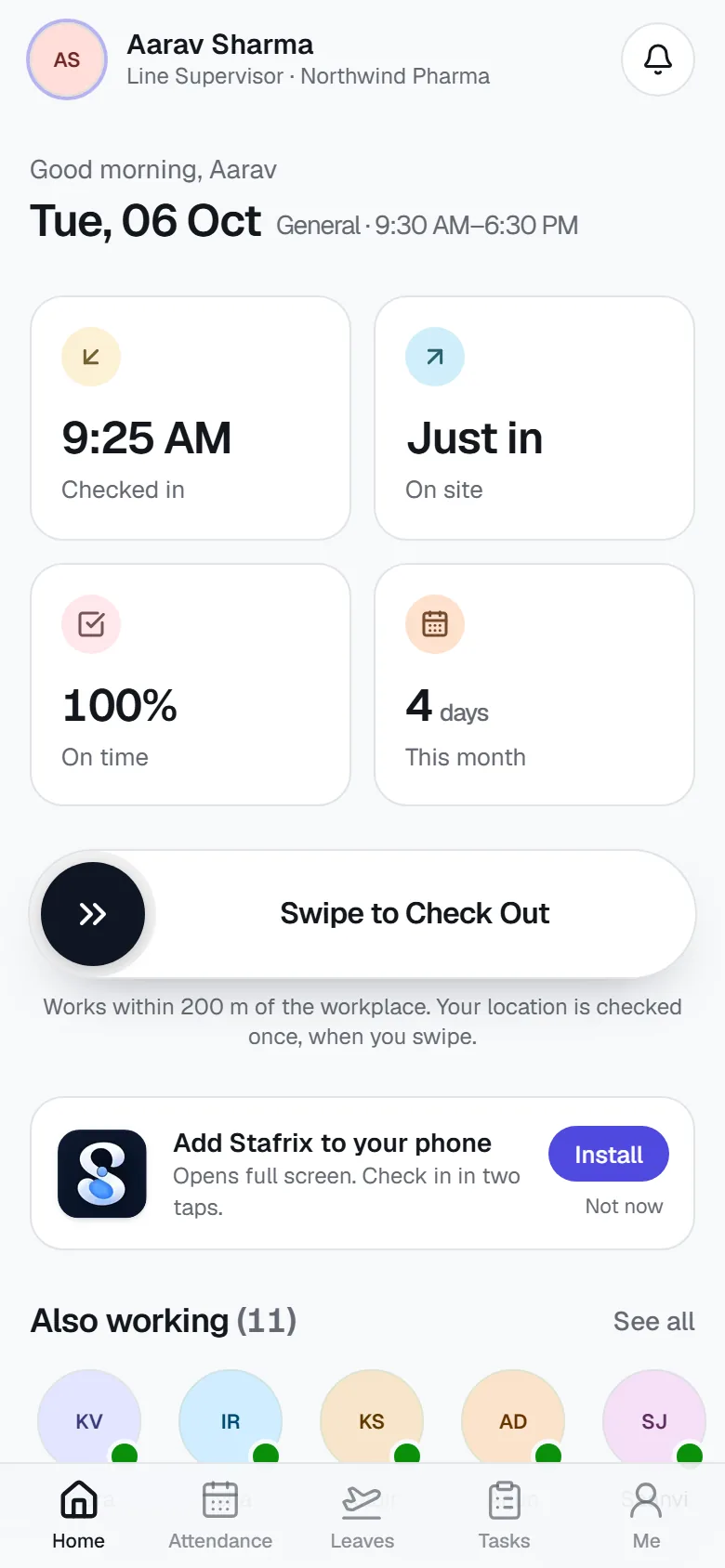
The five tabs
- Home
- Check in and out, today’s punches, who else is in, your tasks, announcements and holidays.
- Attendance
- Your month as a calendar. Tap a day for its punches and any decisions. Ask for a missed punch from the day you forgot (up to 45 days back).
- Leaves
- Apply for leave, withdraw a request, and see company holidays.
- Tasks
- Work assigned to you. Tick off steps and mark a task done.
- Me
- Photo and contact details, password, two-step sign-in, check-in phones, signed-in devices, Light or Dark, your stats, and payslips with the reasons behind the amount and a PDF to download.
If check-in doesn’t work
| The app says | What to do |
|---|---|
| “You’re about 350 m from the workplace. Check-in works within 150 m.” | Move closer to the workplace and swipe again. |
| “Your phone’s location is only accurate to about 80 m right now.” | Turn on precise location (GPS), step outside or near a window, and try again. |
| “Your location is needed to check in.” | Allow location for the Stafrix app or your browser in the phone’s settings. |
| “Take a photo to check in.” | Your employer asks for a selfie. Allow the camera and take the photo. |
| Your new phone is waiting for approval | Ask your manager to approve it. |
- “You’re about 350 m from the workplace. Check-in works within 150 m.”
- What to do
- Move closer to the workplace and swipe again.
- “Your phone’s location is only accurate to about 80 m right now.”
- What to do
- Turn on precise location (GPS), step outside or near a window, and try again.
- “Your location is needed to check in.”
- What to do
- Allow location for the Stafrix app or your browser in the phone’s settings.
- “Take a photo to check in.”
- What to do
- Your employer asks for a selfie. Allow the camera and take the photo.
- Your new phone is waiting for approval
- What to do
- Ask your manager to approve it.
Still stuck?
Write to us and a person from the Stafrix team will answer.